How I work with files in Neovim.
This post takes you through the way I use Neovim - My Neovim config is here.
Writing about how I work surfaces strengths, weaknesses and new ideas of how to work. This helps me understand and improve my work, and helps me when I want to explain how I work to others.
I use the Kitty terminal emulator to start a Tmux session in a Zsh shell. I configure Tmux a bit, and do make the cardinal sin of editing the default key-bindings, but Tmux configuration is not something I change much.
I symlink my Neovim config into ~/.config/nvim with ln.
Most of the time, I start Neovim using a command s in the root of a project I’m working on:
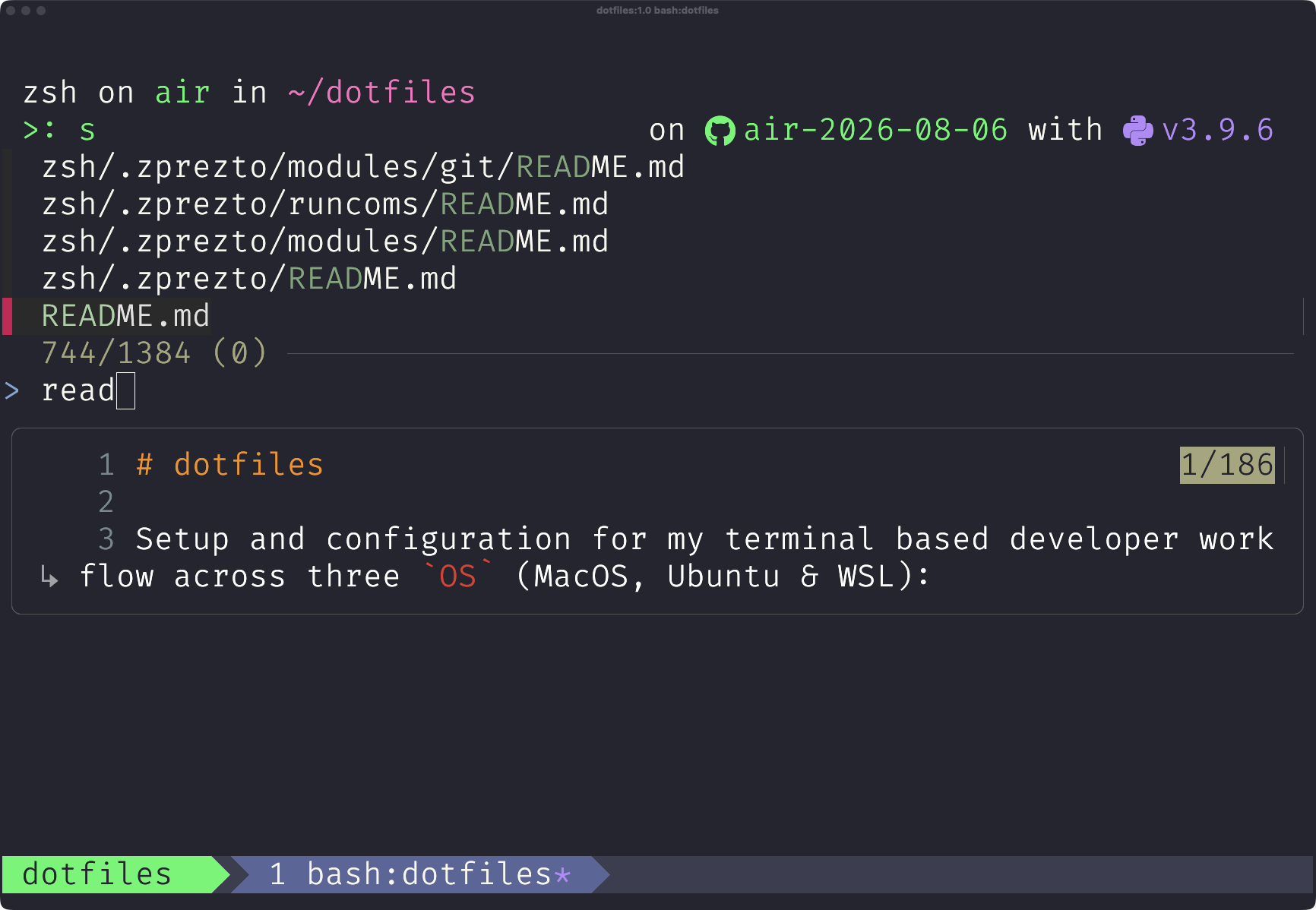
s, with a file preview below.s opens a fuzzy file picker powered by fzf and fd. I select one or more files from the current directory to open in Neovim, using suffix matches such as .py$ or .md$ to narrow the results.
s (s for search) is a shell function that runs a script in my dotfiles search.sh:
#!/usr/bin/env sh

TERM_HEIGHT=$(tput lines)
MIN_HEIGHT=20

# Use provided directory or default to current directory
target_dir="${1:-.}"
cd "$target_dir" || exit

# respect local .gitignore and the global one (core.excludesFile), plus exclude ./archive
# --no-require-git applies the gitignore rules outside git repos too
FZF_DEFAULT_COMMAND='fd --type f --hidden --no-require-git --exclude .git --exclude archive'
export FZF_DEFAULT_COMMAND

if [ "$TERM_HEIGHT" -ge "$MIN_HEIGHT" ]; then
  fzf --preview 'bat --style=numbers --color=always {}' --height 60% -m --print0 | xargs -0 "$EDITOR"
else
  fzf --no-preview --height 40% -m --print0 | xargs -0 "$EDITOR"
fi
The search.sh script is not the prettiest bit of shell code, but it gives me file previews and multi-file selection.
Once running Neovim, I often want to open more files. I almost always work from the root of a Git repo, so the files I want are local to my current working directory.
My leader key is comma, so <leader>j means press , then j.
<leader>j opens a Telescope file picker, with fzf providing the fuzzy matching, in my running Neovim session:
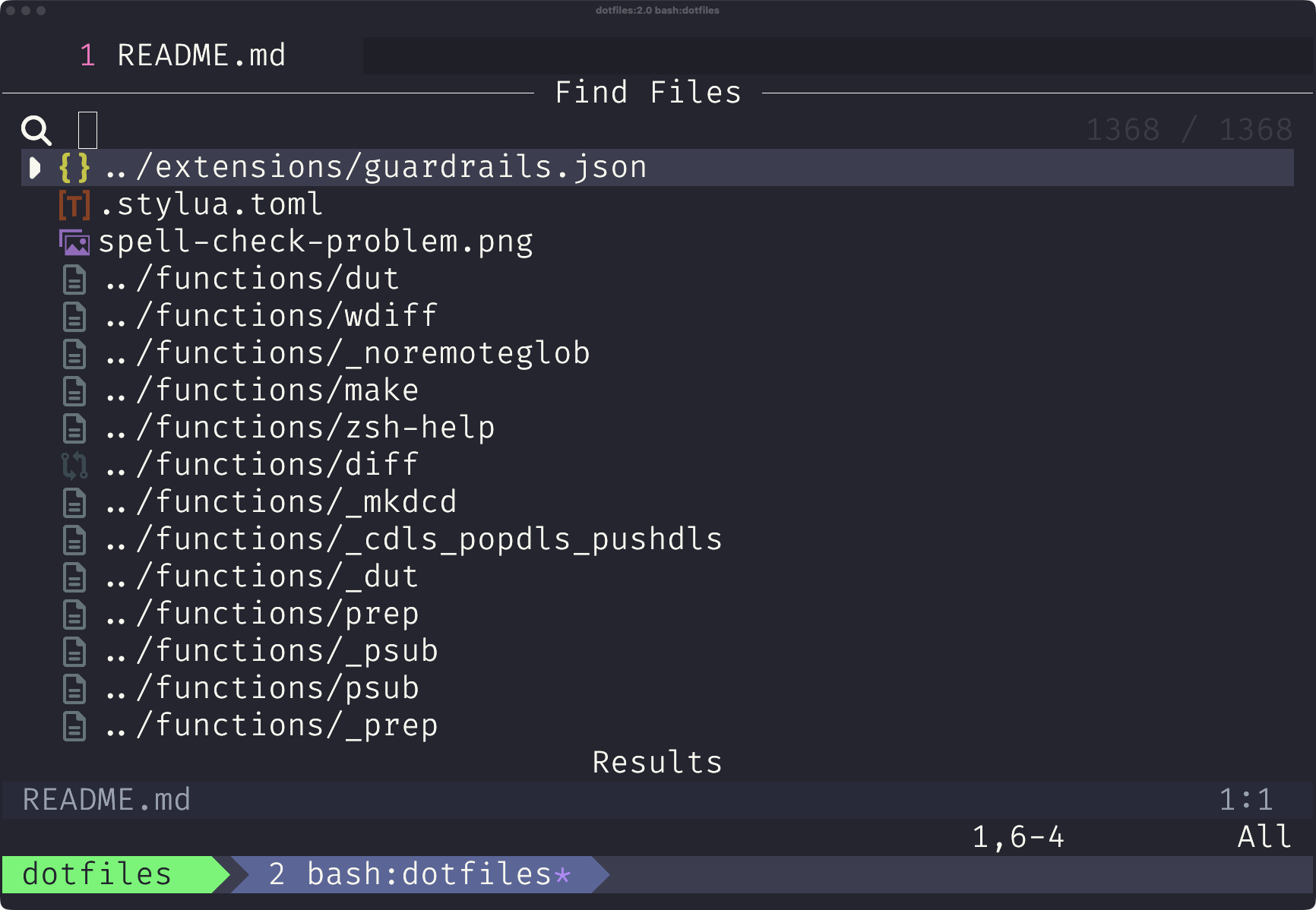
<leader>j.This works similarly to s in that it is a fuzzy search over files in the current working directory, but from within Neovim, rather than on startup.
Most of the time, these two things (starting Neovim with fuzzy searched files from working directory and fuzzy finding more files from within Neovim) are all I need to navigate & open files.
I’m someone who probably closes and opens their text editor more than I should (I’m the opposite of someone who uses browser tabs as bookmarks), so I’m often opening new Neovim sessions.
I prefer to start fresh with a smaller set of files, and be re-opening them, than to be burdened by too many files open at once in my text editor. Just feels cleaner to me when working, but likely an artifact of something quite different.
Sometimes I’ll want to do a similar process, but with files in a different directory. To solve this, I’ll reach for Telescope through my custom :F command (F for find).
I can type a directory path, using Tab to complete it:
:F ~/dotfiles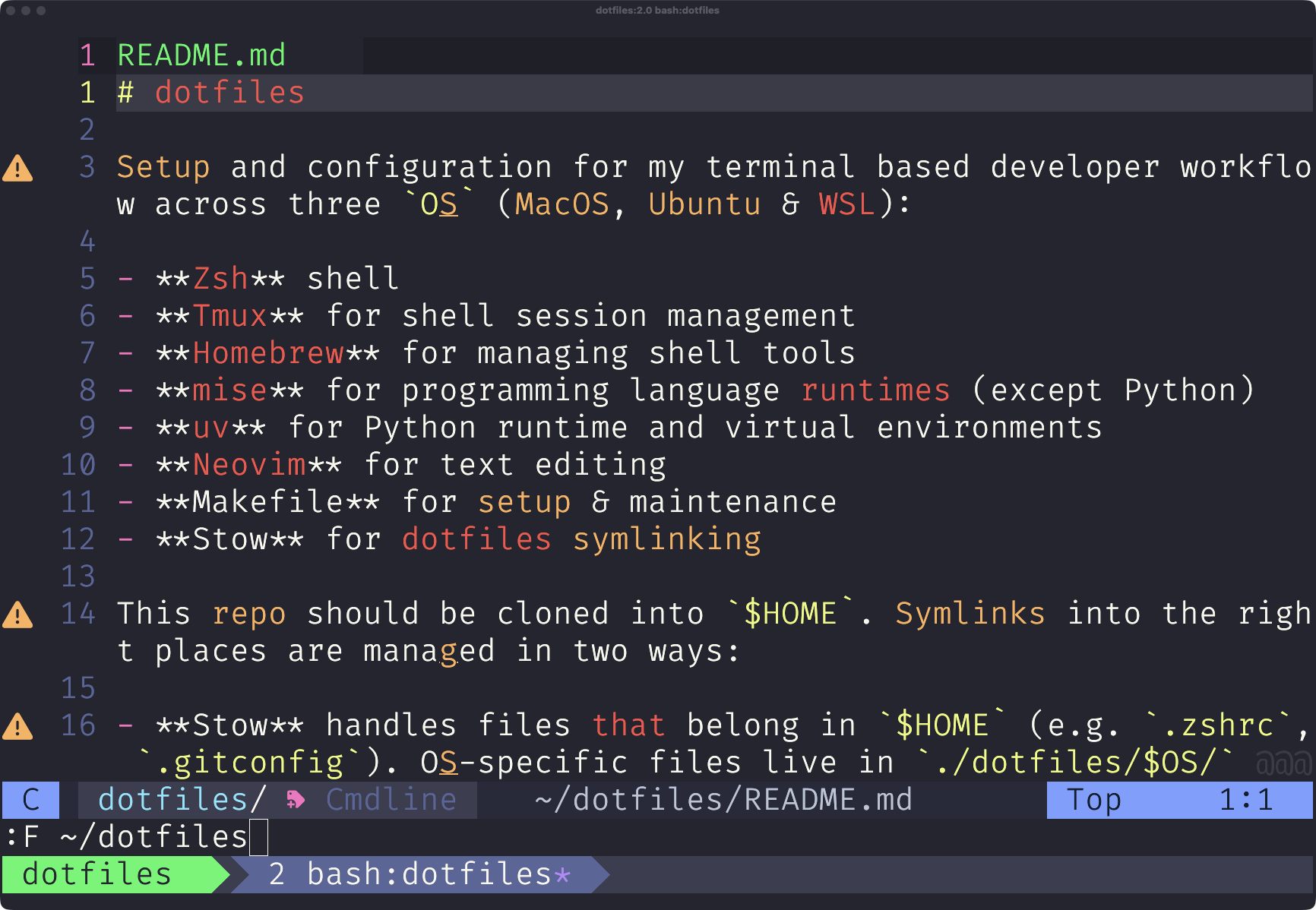
:F ~/dotfiles.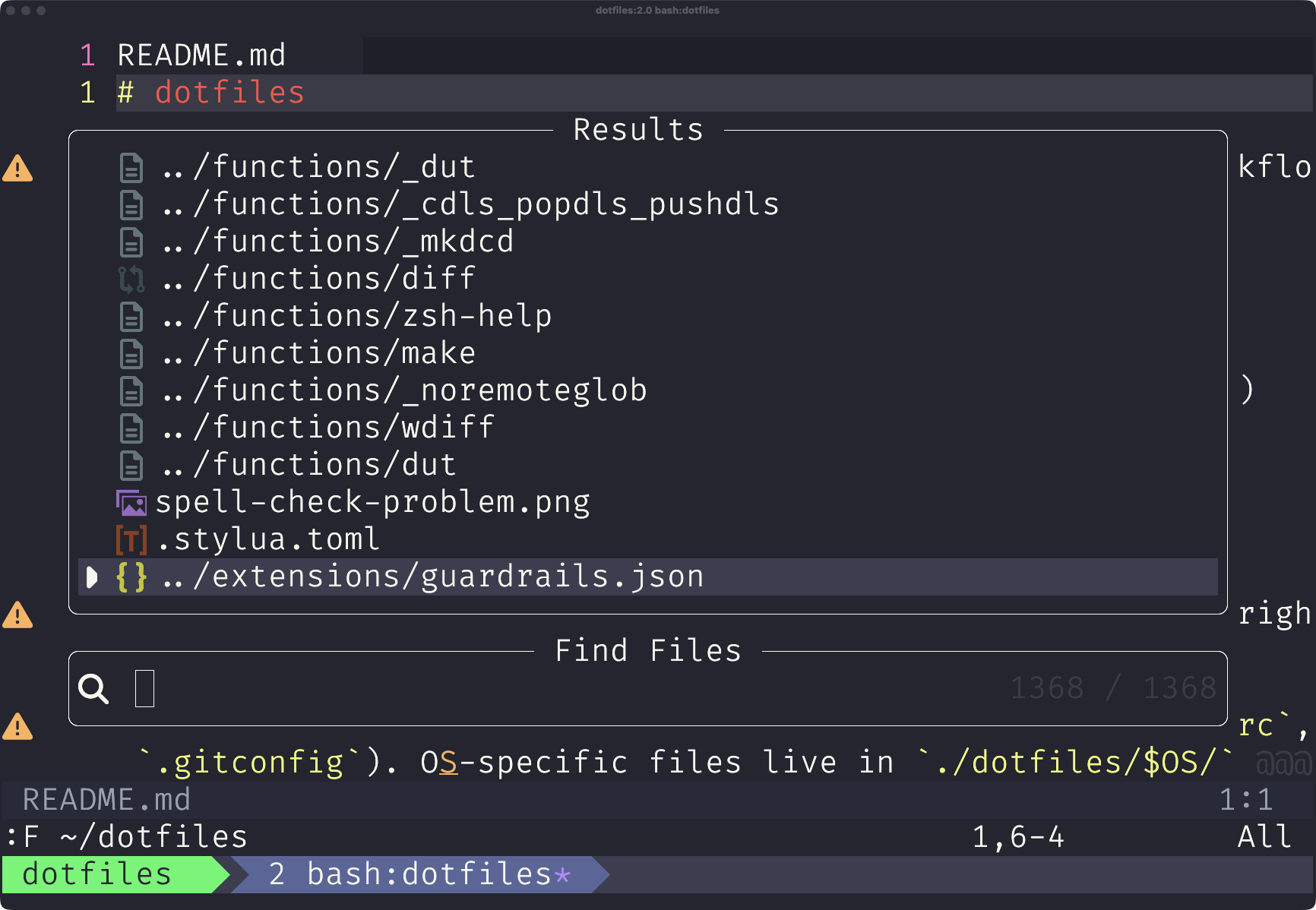
Press Enter to open a fuzzy finder of files in that directory. This lets me open files from anywhere on my machine.
With no path, :F first opens a directory picker under ~. Both forms use this Lua:
-- Fuzzy-find a directory under ~, then find files in it
local function pickDirAndFindFiles()
	local home = vim.fn.expand("~")
	require("telescope.pickers")
		.new(require("telescope.themes").get_ivy({ prompt_title = "<Directories>" }), {
			finder = require("telescope.finders").new_oneshot_job({
				"fd",
				"-H",
				"-a",
				"--type",
				"d",
				"--max-depth",
				"2",
				"--exclude",
				"node_modules",
				"--exclude",
				"venv",
				"--exclude",
				".git",
				".",
				home,
			}, {}),
			sorter = require("telescope.config").values.file_sorter({}),
			attach_mappings = function(prompt_bufnr)
				require("telescope.actions").select_default:replace(function()
					local entry = require("telescope.actions.state").get_selected_entry()
					require("telescope.actions").close(prompt_bufnr)
					require("telescope.builtin").find_files({ cwd = entry.value })
				end)
				return true
			end,
		})
		:find()
end

vim.api.nvim_create_user_command("F", function(opts)
	if opts.args ~= "" then
		require("telescope.builtin").find_files({ cwd = vim.fn.expand(opts.args) })
	else
		pickDirAndFindFiles()
	end
end, { nargs = "?", complete = "dir" })One lesson I took from Algorithms to Live By is that recency is a good way to sort your work.
When in Neovim, I can open recent files with <leader>':
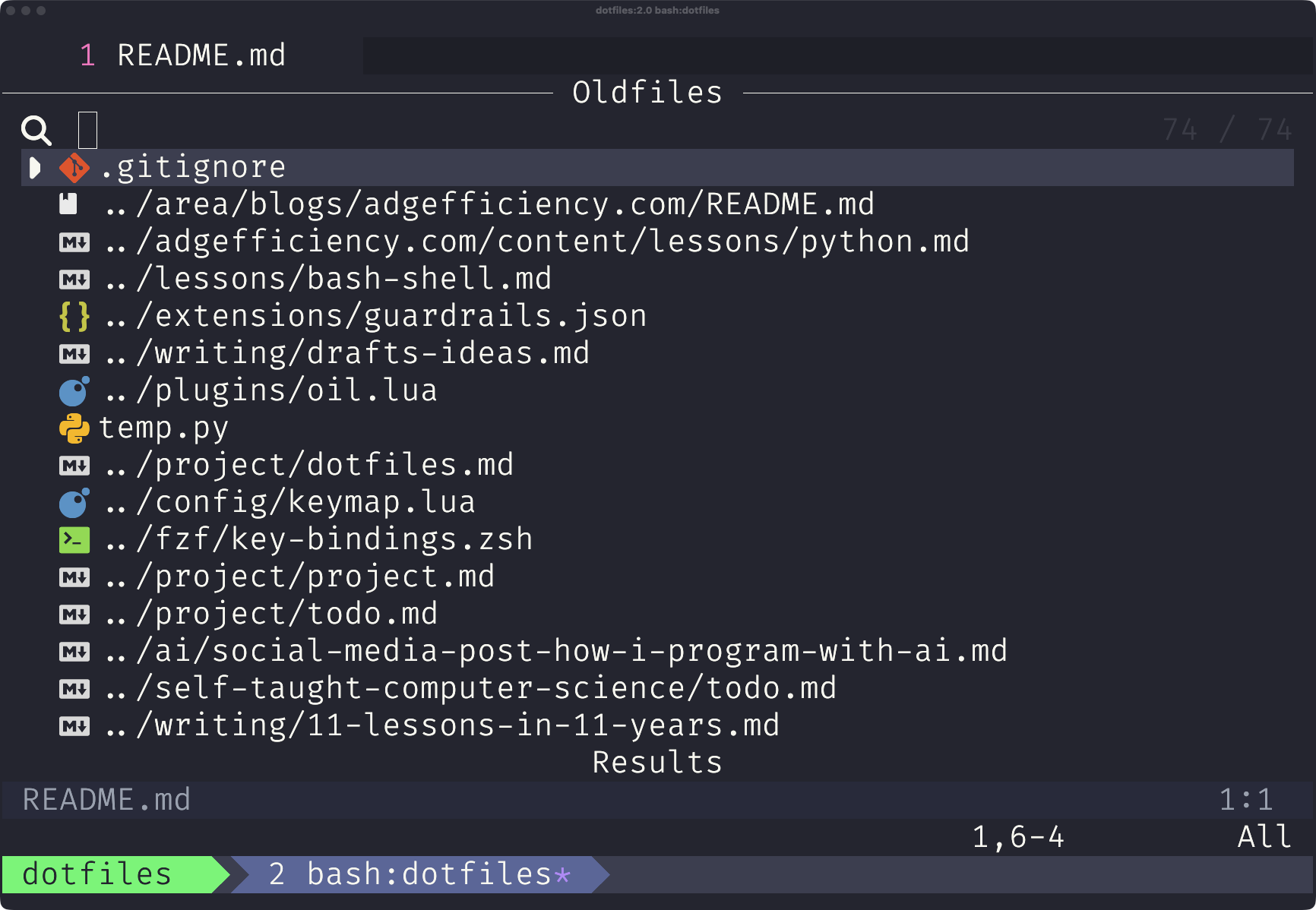
<leader>', including files outside the current project.Under the hood this maps to:
require("telescope.builtin").oldfiles(require("telescope.themes").get_ivy({}))When in Neovim, I can navigate open buffers with <leader>,:
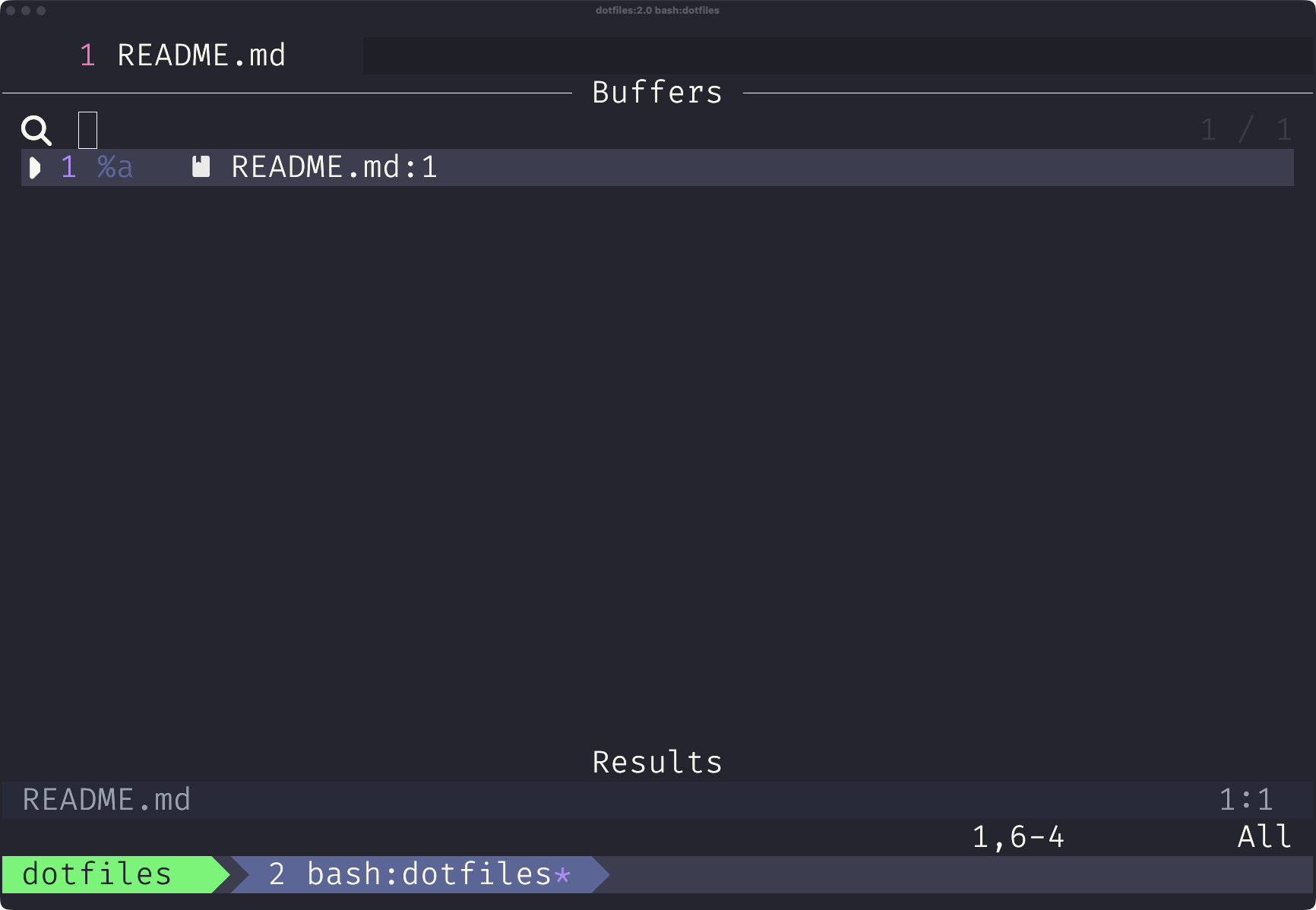
README.md open in this session.I’ve changed these shortcuts and their Lua implementations more than anything else in my config.
<leader>. runs a Lua function to grep for the word under the cursor:
local function grep_opts(text, extra)
	return vim.tbl_deep_extend("force", {
		default_text = text,
		layout_strategy = "vertical",
		sorting_strategy = "ascending",
		layout_config = {
			mirror = true,
			prompt_position = "top",
			width = 0.95,
			height = 0.95,
			preview_height = 0.5,
			preview_cutoff = 0,
		},
	}, extra or {})
end

local function grep_word(extra)
	return function()
		require("telescope.builtin").live_grep(grep_opts(vim.fn.expand("<cword>"), extra))
	end
end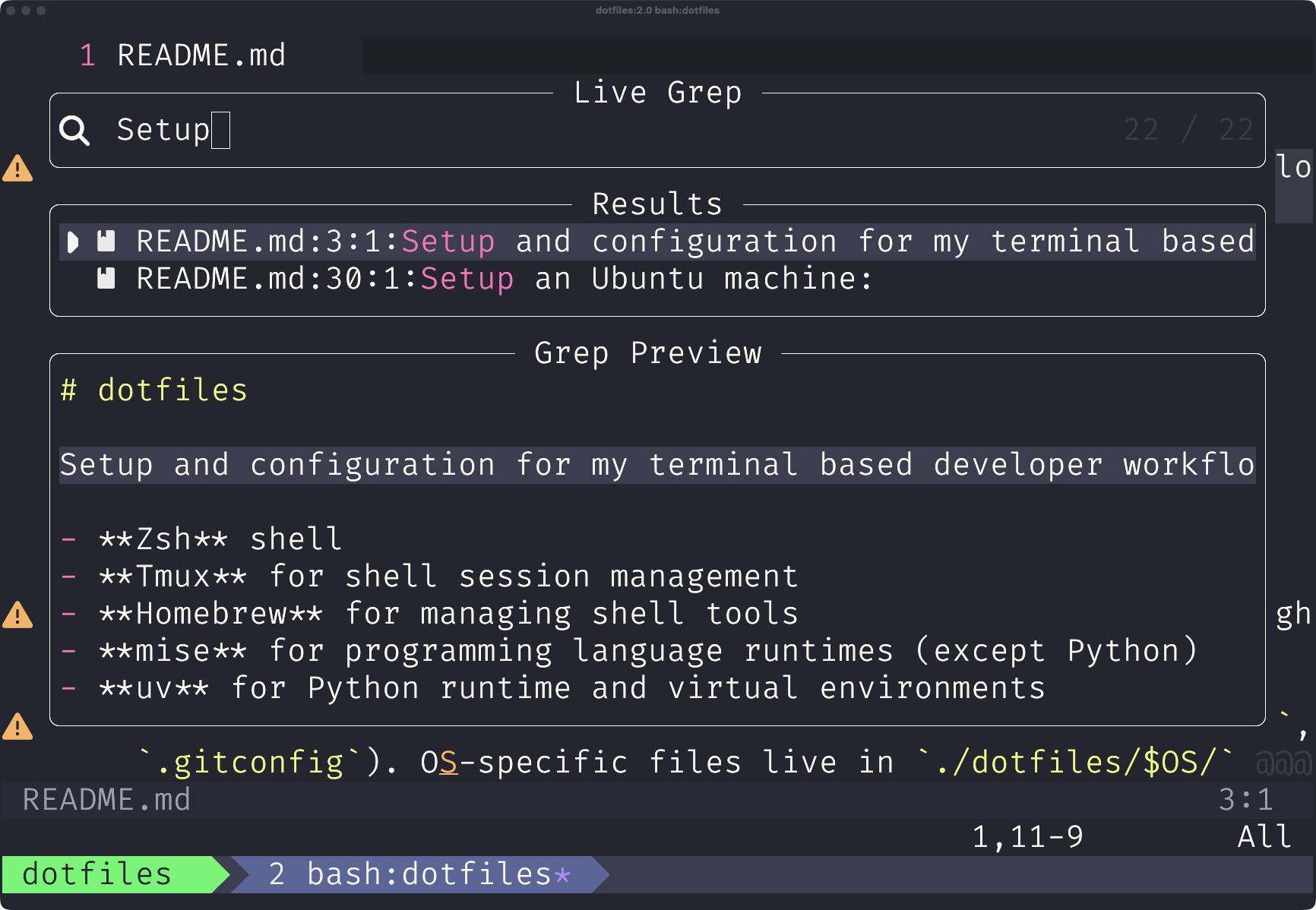
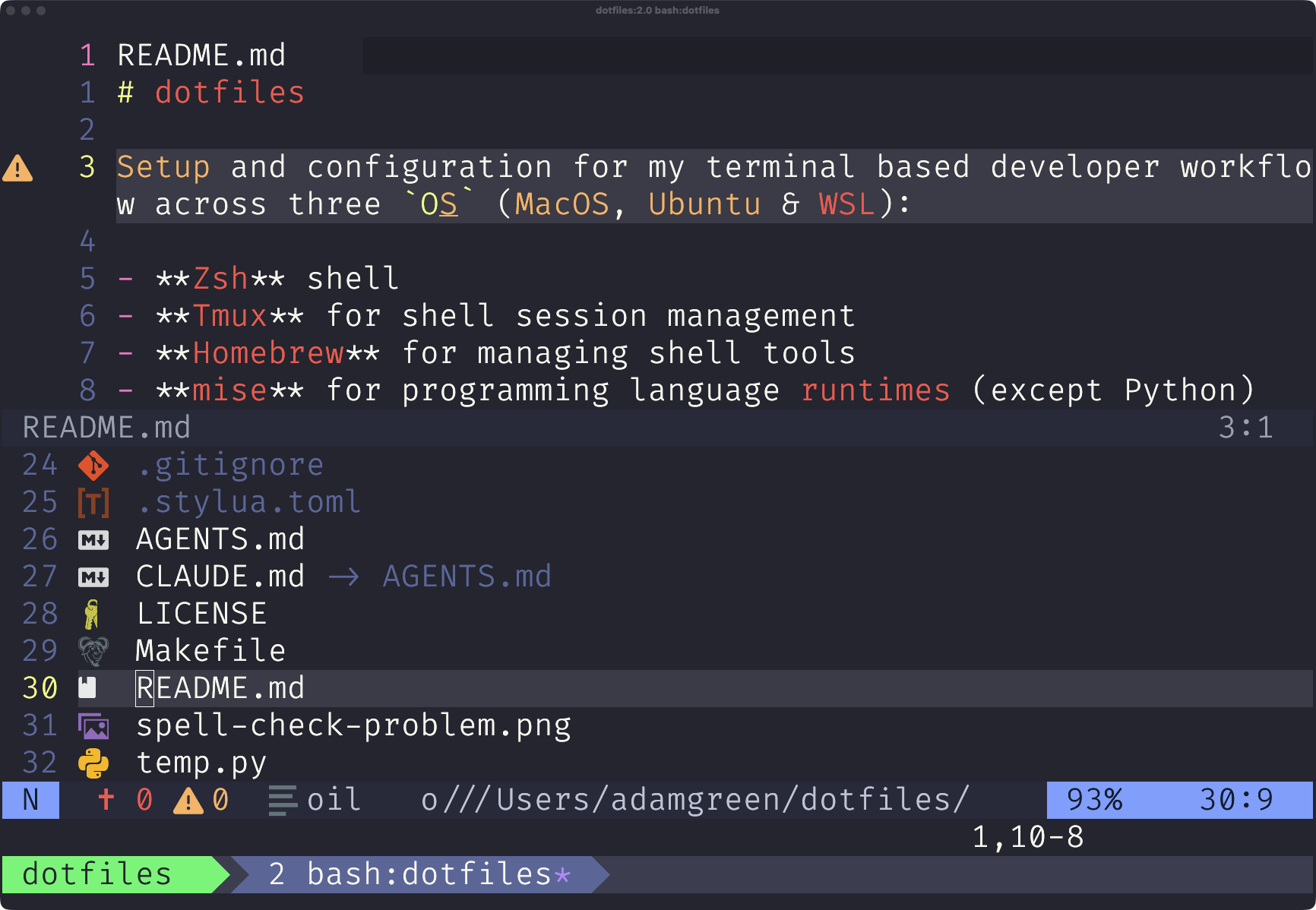
Setup under the cursor with <leader>..I use Oil to manage files inside Neovim. <leader>o opens the current file’s directory in a horizontal split.
Oil lets me edit a directory like a text buffer, allowing navigating the file tree, renaming or moving files all with Vim motions and commands.
<leader>o, while keeping the file visible above.Thanks for reading!
